
In the competitive world of e-commerce, effective stock and variant handling in WooCommerce is more than just inventory management—it’s a cornerstone for operational efficiency, customer satisfaction, and SEO success. Stock handling ensures real-time tracking of product quantities to prevent overselling, while variant management allows for detailed control over options like sizes, colors, or materials in variable products.
As of 2026, with WooCommerce powering over 25% of online stores and Google’s algorithms increasingly favoring user-centric experiences, mishandling these elements can lead to high bounce rates, poor Core Web Vitals scores, and diminished search rankings.
This comprehensive guide explores everything from basic setup to advanced strategies, drawing on the latest WooCommerce updates (v9.6+), best practices from experts, and tools to optimize your store for scalability and performance.
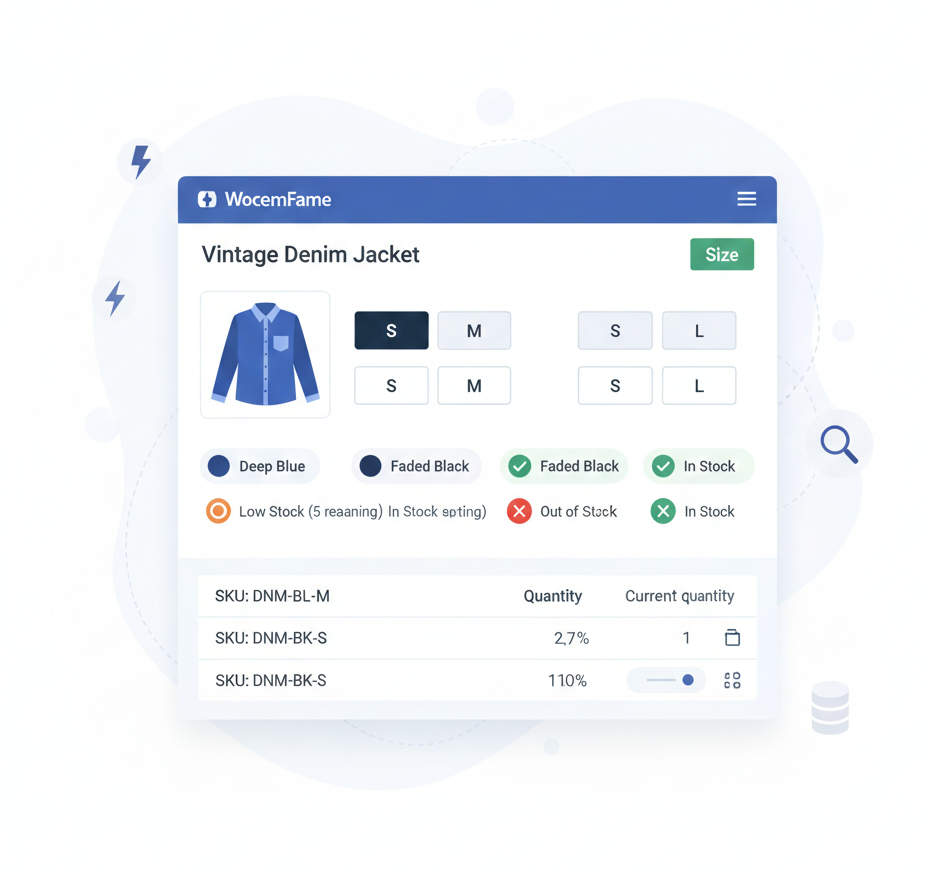
Whether you’re managing a small boutique or a large catalog with thousands of SKUs, mastering these features will help maintain accurate availability signals, boost conversions by up to 20%, and align with SEO requirements like structured data for rich snippets. Here’s a glimpse of a typical stock management dashboard in WooCommerce.
Understanding Stock Management in WooCommerce
WooCommerce’s stock management system is integrated into its core, providing robust tools to track inventory across simple and variable products. It automatically decrements stock on successful orders, restores it during cancellations or refunds, and updates statuses like “In Stock,” “Out of Stock,” or “On Backorder.
This prevents overselling, maintains accurate reporting, and supports multi-channel sales. For businesses with physical inventory, it integrates with barcode scanners via plugins, while digital products can bypass stock entirely.
Core functionalities include:
- Global Inventory Settings: Under WooCommerce > Settings > Products > Inventory, enable stock management, set hold durations for unpaid orders (e.g., 60 minutes to prevent cart abandonment issues), define low/out-of-stock thresholds, and control visibility of unavailable items.
- Stock Status Automation: WooCommerce dynamically changes product status based on quantity, with options to allow backorders or notify customers.
- Email Alerts: Customizable notifications for low stock, out-of-stock, or backorder events, helping with timely restocking.
- Reporting and Analytics: Built-in reports under WooCommerce > Reports > Stock overview, low-stock, out-of-stock, and top-sellers, exportable to CSV for external analysis.
- API and Integrations: Use the REST API for custom apps or sync with ERP systems like SAP or QuickBooks for enterprise-level control.
Without proper configuration, stores risk stock discrepancies, leading to customer dissatisfaction and negative reviews that harm E-E-A-T (Expertise, Authoritativeness, Trustworthiness) signals in SEO.
Setting Up Stock for Simple Products
Simple products—standalone items without options—are the easiest to configure. Follow these steps:
- Go to Products > Add New (or edit an existing one).
- In the Product Data metabox, select “Simple product.”
- Switch to the Inventory tab: Check “Manage stock?” to activate tracking.
- Input initial “Stock quantity,” set “Low stock threshold” (e.g., 10 for alerts), enable backorders if needed, and add a unique SKU for identification.
- Optionally, mark as “Sold individually” to limit purchases to one per order.
- Save and test by simulating an order to verify auto-decrement.
For bulk operations: Use the Products screen > Bulk Actions > Edit to update stock across multiple items. Plugins like Stock Manager add spreadsheet-like interfaces for faster edits. For SEO, ensure out-of-stock items use noindex tags or 302 redirects to related products, avoiding thin content penalties.
Managing Variants and Variable Products
Variable products cater to items with multiple options, creating combinations (e.g., a T-shirt in S/M/L and red/blue). This setup is vital for 40% of e-commerce stores dealing with customizable goods.
- Create a variable product: In Product Data, select “Variable product.”
- Attributes Tab: Add global (reusable) or custom attributes (e.g., “Color” with values “Red|Blue|Green”).
- Check “Used for variations” and save attributes.
- Variations Tab: Click “Generate variations” or add manually—WooCommerce creates all combos.
- For each variation: Enable “Manage stock?,” set quantity, price, SKU, image, weight/dimensions, and shipping class.
- Bulk-edit variations via the “Bulk actions” dropdown for efficiency.
Stock options:
- Per Variation: Ideal for unique inventories (e.g., more red than blue).
- Shared/Product Level: For pooled stock across all variants.
- Backorders per Variant: Allow selective backordering.
Limit combos to <100 per product to avoid performance hits; use plugins for matrix views if needed. Frontend: Display as dropdowns, swatches, or radios; show stock quantities to guide purchases and reduce cart drops.
Advanced Stock Features: Backorders, Low Stock, and More
Elevate your management with:
- Backorders: Enable to sell beyond zero—customize messages like “Available in 7 days.” Track via reports to manage expectations.
- Thresholds and Alerts: Set low-stock emails; use plugins for supplier auto-orders.
- Sold Individually: For limited items, like event tickets.
- Custom Statuses: Plugins add “Pre-Order” or “Coming Soon” with countdowns.
- Multi-Location/Warehouse: Tools like ATUM handle separate stocks per site/warehouse, with transfer features.
- Batch and Serial Numbers: For traceability, use extensions to assign unique identifiers.
- Subscriptions and Bundles: Ensure stock deducts correctly for recurring or grouped products.
For global sales, integrate with fulfillment services like ShipStation for automated updates.
Understanding WooCommerce Stock Management
WooCommerce includes a built-in inventory system that lets you control stock at multiple levels:
- Product level: For simple products
- Variation level: For products with options like size or color
When stock is enabled, WooCommerce automatically reduces inventory after a successful order, restores it on cancellations or refunds, and displays statuses like In Stock, Out of Stock, or On Backorder.
This real-time tracking is critical to prevent overselling and maintain trust.
Global Inventory Settings
Go to WooCommerce » Settings » Products » Inventory:
- Enable stock management (must be checked for automatic control)
- Low stock threshold — receive notifications before stock runs out
- Out of stock threshold — determines when items are marked unavailable
- Hold stock (minutes) — WC reserves items for a set time during checkout
- Out-of-stock visibility — choose whether out-of-stock products are hidden
Setting Up Stock for Simple Products
Managing stock for individual products is easy:
- Go to Products > Edit the item
- In the Product Data » Inventory tab, enable Manage stock?
- Enter the Stock quantity
- Set a Low stock threshold and decide on Backorders
- Add an SKU if needed for external systems
If you sell unique items or limited runs, limiting purchases per order or setting backorder policies can help control expectations and fulfillment.
Managing Variants and Variable Products
For products with multiple options, WooCommerce lets you manage each variation independently:
- Choose Variable product in the dropdown
- In Attributes, define options (e.g., size, color)
- Select Used for variations and save
- In the Variations tab, expand each and enable Manage stock?
- Set individual stock, prices, SKUs, and backorder behavior
This allows granular control, like tracking stock for “Red – Small” separately from “Blue – Large.”
Conclusion
Mastering stock and variant handling in WooCommerce is pivotal for 2026’s e-commerce success, blending inventory accuracy with SEO optimization to drive sustainable growth.
By following this guide—from basic setups to advanced plugins—you’ll minimize errors, enhance user trust, and leverage Google’s preferences for fast, reliable stores, and also SEO optimization. Regular audits and tools like Setary or ATUM will keep your operations scalable.
If scaling issues persist, consider consulting WooCommerce experts for custom solutions. Start implementing today to see measurable improvements in rankings and revenue.