 Skip to content
In the evolving landscape of digital analytics and SEO, setting up Google Analytics 4 (GA4) with Enhanced Ecommerce tracking and integrating it with Google Search Console (GSC) is essential for e-commerce businesses aiming to optimize performance, track user behavior, and improve search visibility.
Enhanced Ecommerce in GA4 goes beyond basic tracking by capturing detailed events like product impressions, add-to-cart actions, checkouts, and purchases, providing granular insights into customer journeys.
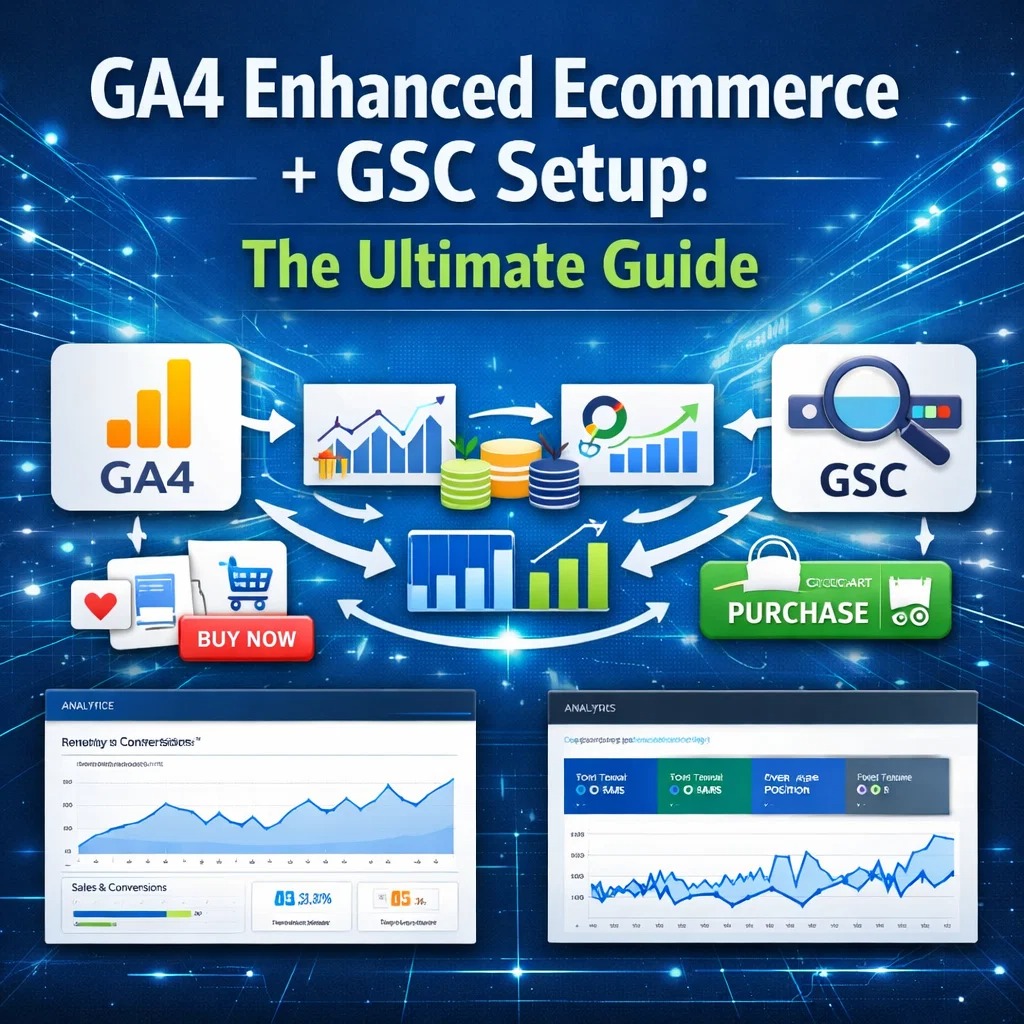
When linked with GSC, which offers data on search queries, impressions, and click-through rates, this integration creates a unified view of organic traffic and conversion paths, enabling data-driven decisions that boost revenue and rankings.
As of 2026, with GA4 fully replacing Universal Analytics and Google’s emphasis on user-centric metrics like Core Web Vitals, mishandling this setup can lead to incomplete data, lost opportunities, and suboptimal SEO—potentially reducing conversions by 20% due to untracked behaviors.
This ultimate guide covers everything from prerequisites to advanced tips, ensuring your setup is robust, compliant, and future-proof.
Why Integrate GA4 Enhanced E-commerce with GSC?
Combining GA4’s behavioral analytics with GSC’s search performance data unlocks powerful insights:
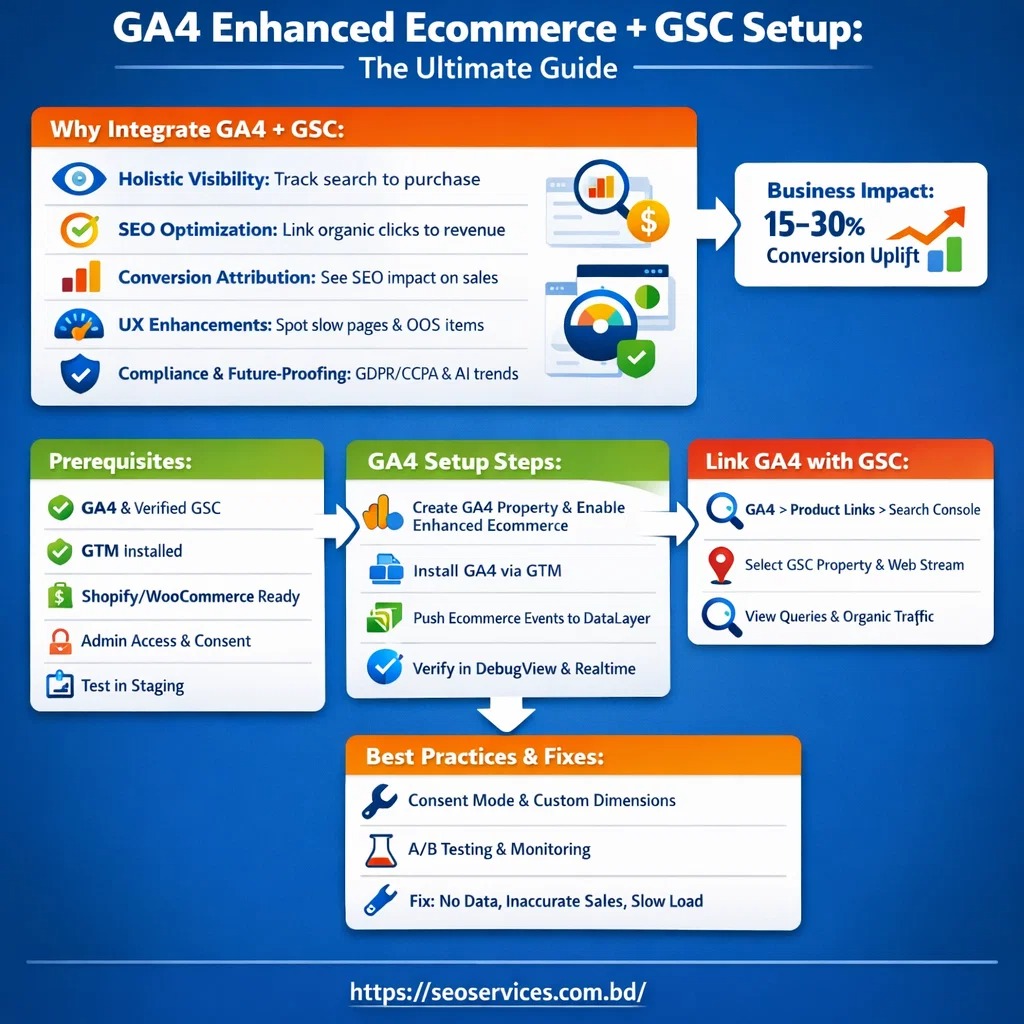
- Holistic Visibility: See how search queries drive traffic to specific products, then track their journey to purchase, identifying high-performing keywords and drop-off points.
- SEO Optimization: GSC data in GA4 reveals organic impressions and clicks, correlated with ecommerce events like add-to-cart or revenue, helping refine content and meta tags for better E-E-A-T (Experience, Expertise, Authoritativeness, Trustworthiness).
- Conversion Attribution: Understand SEO’s role in the sales funnel—e.g., a query leading to a product view that converts—improving ROI calculations and budget allocation.
- User Experience Enhancements: Spot issues like slow-loading variant pages affecting mobile rankings or out-of-stock items causing bounces.
- Compliance and Future-Proofing: Aligns with Google’s privacy-focused updates (e.g., consent mode) and AI-driven search trends, ensuring accurate reporting amid cookie deprecation.
- Business Impact: Stores with proper tracking see 15-30% uplift in conversions through targeted optimizations, per industry benchmarks.
Without integration, you’ll miss correlating search intent with on-site actions, limiting your ability to optimize for revenue-generating queries.
Prerequisites for Setup
Before diving in, ensure:
- A GA4 property created (if not, go to Analytics > Admin > Create Property).
- Google Tag Manager (GTM) account for flexible tracking (recommended over direct GA4 implementation).
- Admin access to your website (e.g., WordPress, Shopify) to add tags.
- Verified GSC property matching your site’s domain (add via GSC dashboard if needed).
- E-commerce platform ready (e.g., WooCommerce, Shopify) with products/variants set up.
- Basic understanding of tags, triggers, and variables in GTM.
- Consent management is in place for GDPR/CCPA compliance, as Enhanced Ecommerce collects user data.
Test in a staging environment to avoid disrupting live data.
Step-by-Step: Setting Up GA4 Enhanced Ecommerce Tracking
Enhanced Ecommerce tracks the full funnel: from views to purchases. Use GTM for implementation.
1. Create and Configure GA4 Property
- In GA4 Admin > Setup Assistant, enable “Enhanced measurement” for automatic events.
- Under Data Streams > Web, add your site URL and enable Enhanced Ecommerce in stream details.
2. Install GA4 via GTM
- In GTM, create a new container if needed.
- Add GA4 Configuration Tag: Variables > New > GA4 Configuration, enter your Measurement ID (G-XXXXXX).
- Triggers: All Pages.
- Publish and install GTM code on your site (head and body).
3. Set Up Data Layer for E-commerce Events
- Push events to dataLayer (e.g., view_item, add_to_cart) via custom code or plugins.
- For WooCommerce: Use the GTM4WP plugin to auto-push events.
- For Shopify: Use Analyzify or the native GA4 app for data layer setup.
- Example dataLayer push for purchase: text
dataLayer.push({ 'event': 'purchase', 'ecommerce': { 'transaction_id': '1234', 'value': 50.00, 'currency': 'USD', 'items': [{...}] } });
4. Create GTM Tags, Triggers, and Variables
- Variables: E-commerce data (e.g., items array, value).
- Triggers: Custom events like “add_to_cart.”
- Tags: GA4 Event tags for each ecommerce action (view_promotion, select_item, etc.).
- Test in GTM Preview mode and GA4 DebugView.
5. Verify and Debug
- Use GA4 Realtime and DebugView to confirm events.
- Check Monetization > E-commerce purchases report for data flow
Step-by-Step: Linking GA4 with GSC
Integrate to view GSC data in GA4 reports.
- In GA4 Admin > Product Links > Search Console Links > Link.
- Choose your GSC account (must be a verified owner).
- Select the web data stream.
- Confirm and submit—link takes 24-48 hours to propagate.
- View data in GA4 under Reports > Acquisition > Search Console (Queries, Organic Traffic).
Best Practices
- Consent Mode: Implement for privacy compliance; use gtag.js for basic or advanced.
- Event Parameters: Always include the items array with id, name, price, and quantity.
- Custom Dimensions: Track variant details as custom params for deeper analysis.
- Multi-Channel Sync: Use plugins for inventory integration (e.g., TradeGecko).
- A/B Testing: Test variant displays for UX impact on conversions.
- Performance Monitoring: Set alerts for data discrepancies.
- SEO Synergy: Use GSC queries to optimize product titles/descriptions.
Common Issues and Fixes
- No Data in Reports: Fix: Check GTM triggers; enable Enhanced Measurement.
- Inaccurate Purchases: Fix: Verify dataLayer pushes; debug in Preview mode.
- GSC Link Fails: Fix: Ensure matching domains and permissions.
- High Bounce from OOS: Fix: Redirect or noindex unavailable pages.
- Variant Load Slow: Fix: Optimize images; use lazy loading.
Setting up GA4 Enhanced Ecommerce with GSC integration empowers your store with actionable insights, bridging search performance and on-site behavior for superior optimization. Follow this guide to avoid common pitfalls, leverage tools for efficiency, and drive measurable growth in traffic and sales.
Regularly audit your data for accuracy, and adapt to Google’s updates for long-term success. If issues arise, consult official docs or experts for tailored support.
