 Skip to content
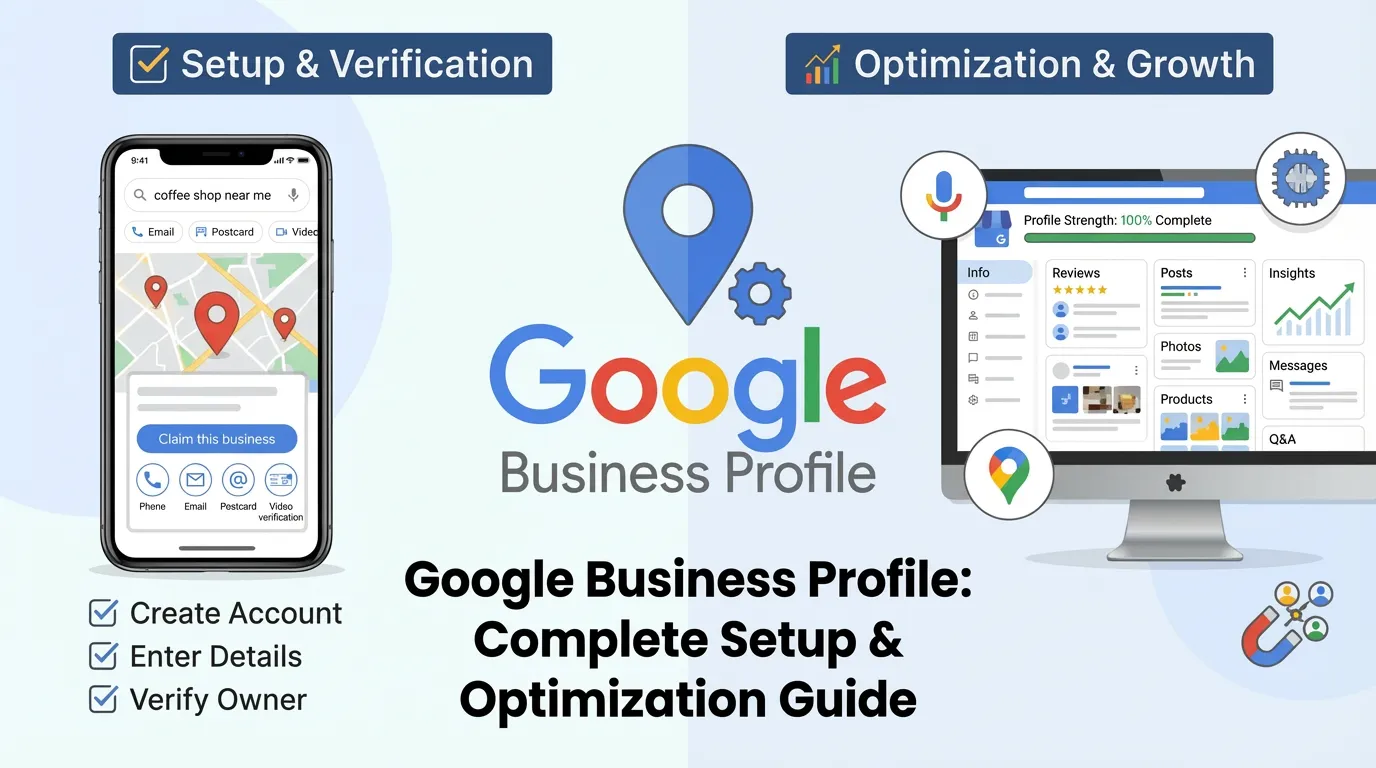
Imagine this: A potential customer searches “best coffee shop near me” on their phone. Within seconds, Google shows a map with three businesses, complete with photos, ratings, and directions. The shop at the top gets the customer. The ones missing? They lose the sale.
This is the power of a Google Business Profile (GBP)—and it’s completely free.
Your Google Business Profile is more than a listing—it’s your digital storefront and often the deciding factor in whether you win or lose a customer. 46% of all Google searches seek local information, and 76% of people who search for something nearby visit a business within 24 hours.
In this guide, you’ll learn how to set up, verify, and optimize your Google Business Profile to boost local rankings, increase click-through rates, and attract more customers in Google’s AI-driven search landscape.
What is Google Business Profile? (Core Features Explained)
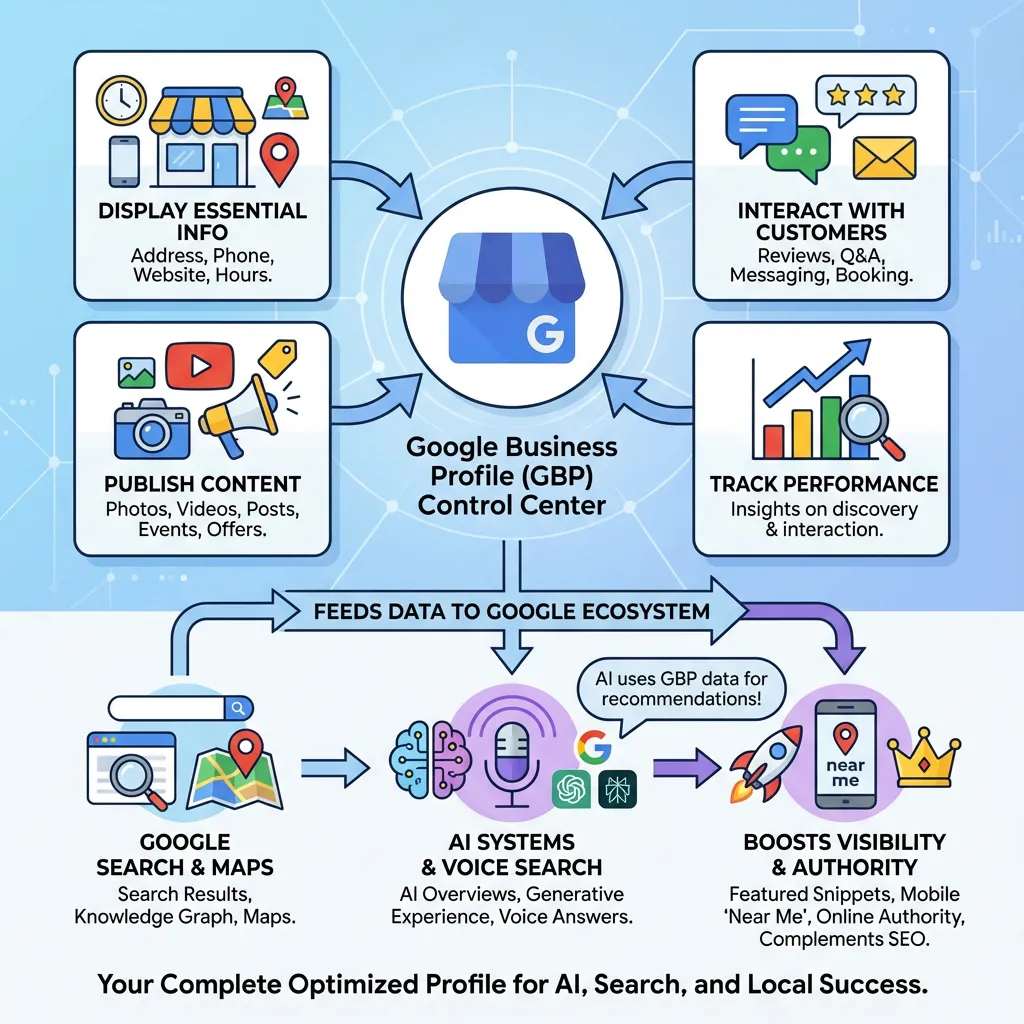
Google Business Profile (formerly Google My Business) is a free tool that lets businesses manage how they appear on Google Search and Google Maps. Think of it as your business’s control center for Google’s ecosystem.
Core Features Overview
When you create a Google Business Profile, you can:
- Display Essential Information: Share your business address, phone number, website link, and operating hours
- Interact with Customers: Respond to reviews, answer questions through Q&A, enable direct messaging, and add booking buttons.
- Publish Content: Upload photos, videos, posts about special offers, events, and company updates.
- Track Performance: Access insights showing how customers find and interact with your business
How GBP Works with Google’s Ecosystem
Your Google Business Profile feeds data directly into Google Search Results, Google Maps, AI Systems (AI Overviews, voice search, Search Generative Experience), and the Knowledge Graph.
Here’s what many business owners miss: Google’s AI increasingly uses GBP data to generate answers. When someone asks ChatGPT, Gemini, or Perplexity, “What’s the best Italian restaurant in [city]?” these systems pull information directly from Google Business Profiles.
A complete, optimized profile increases your chances of appearing in AI-generated recommendations, voice search results, featured snippets, and mobile “near me” searches. Your GBP also complements broader SEO efforts, such as on-site optimization and content strategy, helping establish your online authority.
Who Can (and Should) Use Google Business Profile?
Not every business qualifies for a Google Business Profile, but if you make in-person contact with customers, you’re likely eligible.
Eligible Businesses:
- Storefront Businesses: Retail stores, restaurants, salons, gyms, medical offices
- Service-Area Businesses: Plumbers, electricians, cleaning services, consultants who travel to customers
- Hybrid Models: Businesses with both a physical location and service areas

NOT Eligible:
- Online-Only Businesses: If you never meet customers face-to-face and have no physical location, Google won’t approve your profile
- Rental or Sale Properties: Real estate listings should use Google Ads instead
- Virtual Offices: Unless you have staff working there and meet customers on-site
These GBP rules apply worldwide, though verification methods differ by region. Some countries offer video verification; others rely on postcards. Check Google’s support page if unsure about your business eligibility.
Step-by-Step: How to Create Your Google Business Profile
Creating your Google Business Profile is straightforward, but attention to detail during setup will save you headaches later.
Prerequisites
Before you begin, make sure you have your Google Account, accurate business details (legal name, address, and phone number), your business category, website URL, and access to your preferred verification method (phone, email, or mail).

Creating a New Profile
To create a new Google Business Profile, go to business.google.com or use the Google Maps app to search for your business. If it doesn’t exist, click “Add your business.” Fill in your legal business name, the most specific category, your location or service area, and contact information. Finally, submit the profile for verification.
Claiming an Existing Profile
Sometimes, Google creates a profile for your business automatically based on public data. To claim it:
First, search for your business on Google Maps or Google Search. If an unverified profile already exists, click the “Claim this business” or “Own this business?” link. Finally, follow the prompts to complete the verification.
Pro Tip: Choose your business category carefully. Google uses this as a primary ranking signal. “Italian Restaurant” will perform better in relevant searches than the generic “Restaurant.” You can add secondary categories later to capture broader searches.
Verification Methods: Getting Your Profile Live
Verification proves to Google that you’re the legitimate owner of your business. You can’t edit or manage your profile until you complete this step.
Available Verification Methods:
Verifying your Google Business Profile (GBP) is a crucial step to ensure your listing appears in Google Search and Maps. Google offers five verification methods, each with different requirements and processing times. Here’s a detailed breakdown of each option to help you choose the best one for your business:

1. Phone or Text Message (Fastest Method)
Phone or Text Message is the fastest option if you’re eligible. Receive a code via call or SMS, enter it in your dashboard, and you’re verified instantly. However, this method is only available for select businesses.
2. Email Verification
Email Verification is another quick choice for businesses already known to Google, such as those with verified websites or Google Workspace accounts. You’ll receive a code in your inbox and can verify it within minutes.
3. Postcard (Most Common Method)
Postcard Verification is the most common method, but also the slowest, taking 5–14 days. Google mails a physical postcard with a verification code to your business address. While reliable, this option requires patience.
4. Video Recording (New Option)
Google has introduced video verification as a modern alternative to postcards, available in select regions. To use this method, you must record and submit a short video showing:
- Your business exterior (storefront, signage, or building).
- Your business interior (if applicable, such as a retail store or office).
- Proof of business operations (e.g., tools, products, or staff at work).
Google’s team reviews the video, and if approved, your profile is verified within a few days. This method is faster than a postcard and more secure, making it an excellent choice for businesses that want a balance of speed and reliability.
5. Instant Verification
Instant Verification is the ultimate shortcut. If your business is already verified in Google Search Console, Google automatically confirms ownership immediately. This is the best option if you qualify, as it requires zero additional steps.
Which Verification Method Should You Choose?
- Need it fast? → Phone, text, or email (if eligible).
- No rush? → Postcard (most common).
- Want a modern approach? → Video recording (if available).
- Already verified elsewhere? → Instant verification (best for established businesses).
Once verified, you can fully optimize your GBP to boost local rankings, attract more customers, and increase conversions.
If you encounter issues during verification, our local SEO team can help resolve them quickly.
Verification Tips:
- Don’t request multiple postcards; this can delay the process or trigger security flags.
- Ensure your business is visible from the street and matches what Google Street View shows.

- Keep your verification code safe, you’ll need it to complete setup
Once verified, you can access your profile dashboard through Google Search (search “my business”) or directly at business.google.com.
Optimization Strategies: Turn Your Profile into a Lead Magnet
Creating your profile is step one. Optimization is what separates businesses that dominate local search from those that get buried on page two.

Complete Every Section (Aim for 100% Profile Strength)
Google favors complete profiles because they offer a better user experience. Businesses with complete profiles get up to 7x more clicks than those with incomplete profiles.
Fill out:
- Business Description: Use all 750 characters to describe what you do, who you serve, and what makes you unique. Write naturally—imagine explaining your business to a friend
- Attributes: Select all relevant options (wheelchair accessible, free Wi-Fi, outdoor seating, payment methods)
- Business Hours: Include regular hours, special holiday hours, and “more hours” for specific departments if applicable
- Photos: Upload high-quality images of your logo, cover photo, interior, exterior, team, and products/services
Why Photos Matter: Profiles with photos receive 42% more requests for directions and 35% more website clicks than those without.
Choose the Right Categories
To optimize your Google Business Profile, choose a specific primary category, such as “Plumbing Service,” rather than a general one like “Contractor.” Supplement this by adding two to four relevant secondary categories to capture related searches. Avoid any categories that don’t match your core business, and remember to review your choices quarterly, as Google frequently adds new options.
Optimize for AI and Voice Search
Here’s where modern optimization diverges from old tactics.
Google’s AI systems, including AI Overviews, voice assistants, and search generative experiences, are pulling data from GBPs to answer conversational queries like:
- “What restaurants are open now near me?”
- “Best plumber with good reviews in [neighborhood]”
- “Coffee shops with free WiFi”
To optimize for AI extraction:
- Use Natural Language: Write your description as if answering “What does your business do?”, not like you’re stuffing keywords
- Answer Common Questions: Use the Q&A feature to pre-answer frequent customer questions
- Include Conversational Keywords: Terms people speak, not just type (“open late,” “accepts credit cards,” “family-friendly”)
Mobile & Bilingual Consideration: If you serve non-English speaking customers, consider including key terms in their language. Google increasingly shows bilingual snippets on mobile devices in multicultural markets.
Publish Posts Regularly
Publish Google Business Posts regularly, treating them as mini-updates that appear in your search results. Share content like special offers, events, product updates, and company news. Aim to post at least once a week to signal to Google that your business is active, which can boost your rankings and improve click-through rates.
Manage and Respond to Reviews
Reviews are a top local ranking factor. To optimize, respond to all reviews promptly and genuinely, using keywords naturally in your replies. Actively encourage customers to leave feedback. A high volume of positive reviews boosts rankings and click-through rates. Importantly, never pay for or incentivize reviews, as Google will penalize your profile for doing so.
How Google Business Profile Affects Your CTR and Rankings
Understanding the connection between your GBP and search performance helps you prioritize optimization efforts.
Local Pack Rankings
The “local pack” is the map showing three businesses at the top of local search results. Ranking here drives massive traffic.
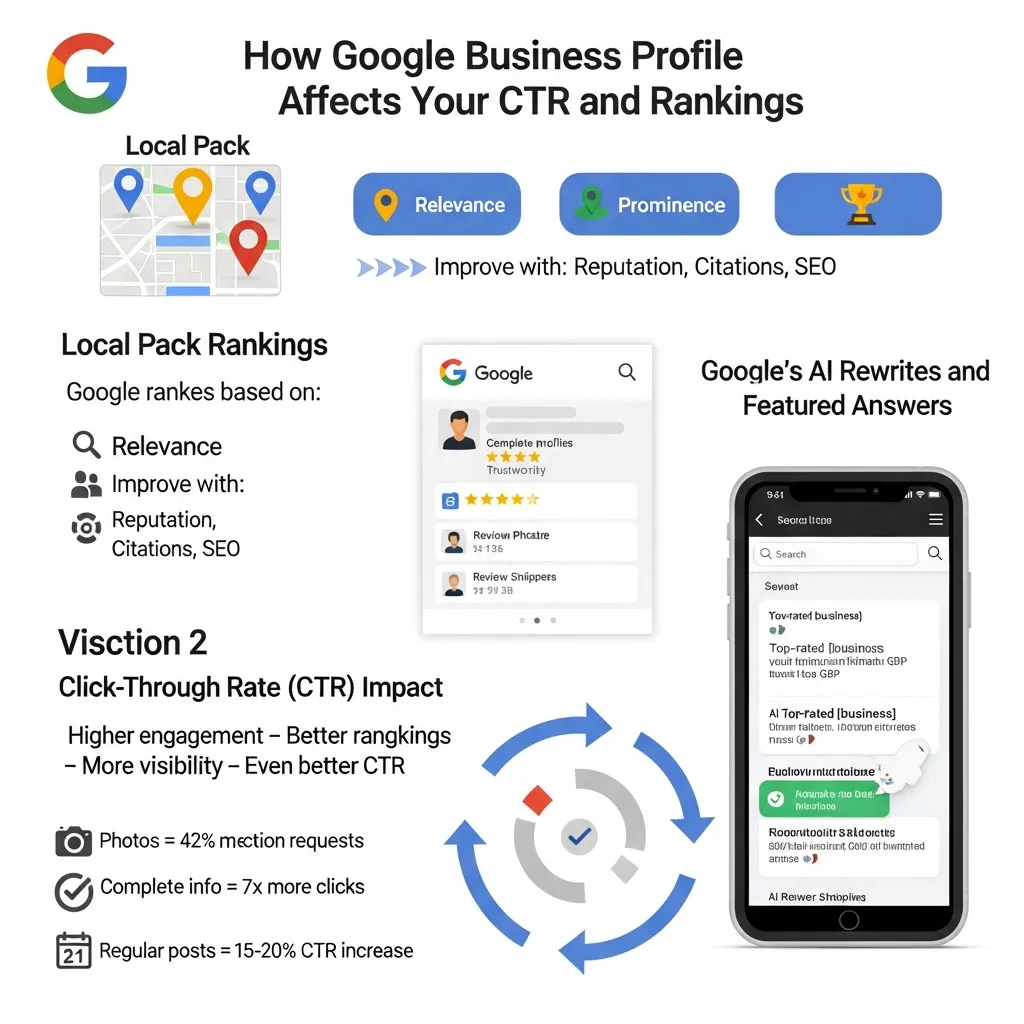
Google ranks local pack results based on three factors:
- Relevance: How well your profile matches the search query
- Distance: How close you are to the searcher
- Prominence: Your overall online authority (reviews, citations, backlinks, website quality)
You control relevance through categories, descriptions, and attributes. You can’t control distance. But you can improve prominence through reputation management, local citations, and comprehensive SEO.
Click-Through Rate (CTR) Impact
Your GBP directly influences CTR in two ways:
First, complete profiles with photos, reviews, and updated information look more trustworthy. Users are more likely to click.
Second, higher engagement (clicks, calls, direction requests) sends positive user signals back to Google. This creates a virtuous cycle: better CTR → stronger ranking signals → more visibility → even better CTR.
Research shows profiles with:
- Photos get 42% more direction requests
- Complete information gets 7x more clicks
- Regular posts see 15–20% CTR increases
Google’s AI Rewrites and Featured Answers
Google’s AI, like its Search Generative Experience (SGE), now creates instant answers for local searches by pulling data directly from Google Business Profiles. It uses descriptions, attributes, and reviews to highlight top businesses in its generated responses.
To appear in these AI-generated results:
- Keep your profile 100% complete
- Use structured, clear language
- Include specific attributes (parking, accessibility, etc.)
- Maintain high review ratings and volume
Your Google Business Profile is the foundation of local SEO. Combined with website optimization and local citations, it creates a robust ecosystem that maximizes your visibility across traditional search, maps, and new AI-generated answers.
Advanced Features: Unlock Hidden Potential
Most businesses set up their profile and stop there. Advanced users leverage these often-overlooked features:
Google Business Profile Insights
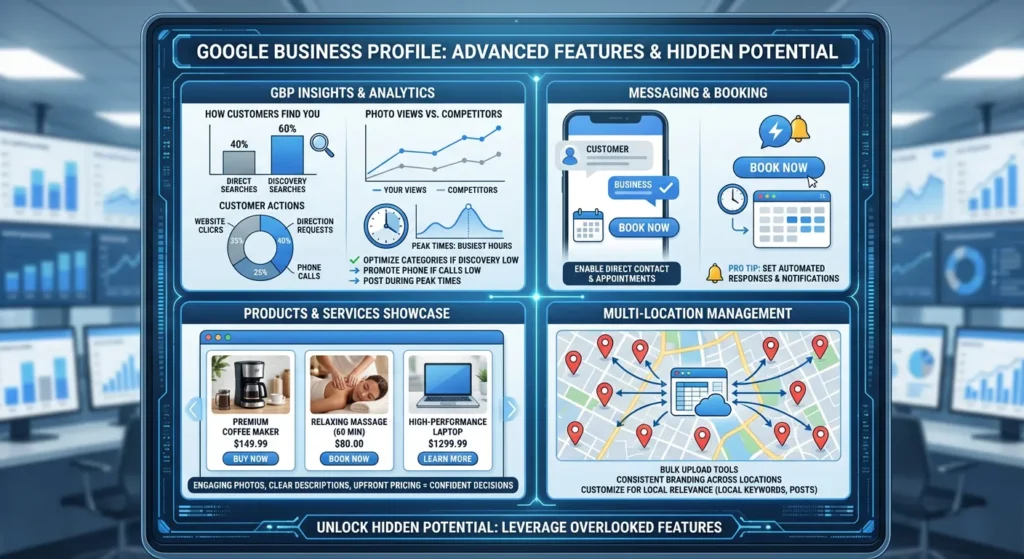
Your GBP dashboard provides key analytics:
- How Customers Find You: Direct searches (by name) vs. Discovery searches (by category).
- Customer Actions: Website clicks, direction requests, and phone calls.
- Photo Views: Your photo views compared to competitors.
- Peak Times: When your location is busiest.
How to Use Insights:
- If discovery searches are low, optimize your categories and posts.
- If direction requests are high but calls are low, make your phone number more prominent.
- Post during peak engagement times for maximum visibility.
Messaging and Booking
Enable Messaging to let customers contact you directly through your GBP. You’ll receive messages via the Google Maps app or Business Profile Manager.
Add Booking Buttons if you offer appointments. Google integrates with popular scheduling tools so customers can book directly from search results.
Pro Tip: Set up automated responses for common questions and enable notifications so you respond quickly (response speed affects customer satisfaction).
Products and Services Showcase
Moreover, you can create an excellent virtual showcase for your products and services. To really make your offerings stand out, be sure to add your entire catalog, complete with engaging photos, clear descriptions, and upfront pricing for each item. Ultimately, this simple step does wonders for engagement, as it helps customers confidently make their purchasing decisions before they even need to contact you.
Multi-Location Management
If you have multiple locations:
- Use Google’s bulk upload tools to create profiles at scale
- Maintain consistent branding (photos, descriptions) across locations
- Customize each profile for local relevance (local keywords, neighborhood-specific posts)
Common Mistakes That Hurt Your Rankings
Even well-intentioned businesses make critical errors that tank their local SEO.

Mistake #1: Inconsistent NAP (Name, Address, Phone)
If your business name is “Joe’s Pizza” on your GBP, “Joe’s Pizza & Pasta” on your website,
and “Joe’s Pizzeria” on Yelp, Google gets confused. Inconsistent information across the web dilutes your ranking signals.
Solution: Audit all online mentions (websites, directories, social media) and ensure your NAP is identical across all platforms.

Mistake #2: Ignoring Reviews

Unanswered reviews, especially negative ones, signal poor customer service.
Even a simple “Thank you” shows you’re engaged.
Solution: Set calendar reminders to check reviews weekly and respond promptly.
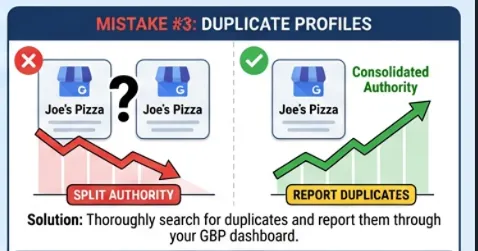
Mistake #3: Duplicate Profiles
Multiple profiles for the same business confuse Google and split your ranking authority.
Solution: Thoroughly search for your business. If duplicates exist, report them through your GBP dashboard under “Support.”
Mistake #4: Keyword Stuffing Your Business Name
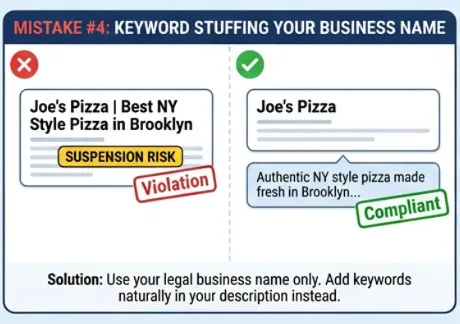
Adding keywords to your business name (“Joe’s Pizza | Best NY Style Pizza in Brooklyn”) violates Google’s guidelines and can result in suspension.
Solution: Use your legal business name only. Add keywords naturally in your description and posts instead.
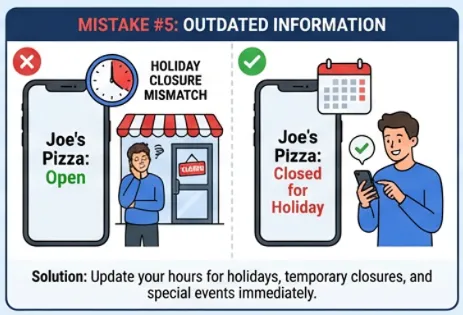
Mistake #5: Outdated Information
Nothing frustrates customers more than showing up at a closed business, even though Google says it’s open.
Solution: Update your hours for holidays, temporary closures, and special events immediately.
Mistake #6: No Photos or Old Photos
Profiles without photos—or with outdated, low-quality images—lose trust and clicks.

Solution: Upload fresh photos monthly. Showcase new products, seasonal decorations, team members, and customer experiences. Regular Audits: Set aside 30 minutes monthly to review your GBP. Check for accuracy,
new review responses, fresh content opportunities, and competitor activity. Or partner with professionals like SEO Services BD to continuously monitor and optimize your profile.
Monitoring Performance and Ongoing Optimization
Your Google Business Profile isn’t “set it and forget it.” Top-performing businesses treat their profile as a living, evolving marketing asset.

What to Monitor Weekly:
Your Google Business Profile needs weekly attention to stay competitive. Check your Insights Dashboard to track views, clicks, calls, and direction requests—identify trends showing growth or decline. Respond to all new reviews within 48 hours to demonstrate engagement and build customer trust. Review your Q&A Section to answer new questions and update outdated information about hours, services, or policies. Finally, monitor Competitor Activity by checking what nearby businesses are posting and how their profiles compare to yours, helping you identify opportunities to improve and stay ahead in local search.
What to Update Monthly:
- Fresh Photos: Rotate featured images, add seasonal content
- Posts: Share at least 4 posts per month (weekly)
- Business Information: Verify hours, services, and attributes are current
What to Test Quarterly:
- A/B Test Descriptions: Try different messaging and see which drives more clicks
- Category Adjustments: Google regularly adds new categories. Check if a more specific option is available
- Service Areas: If you’ve expanded, update your service boundaries
Pro Tip: Use third-party tools or the Google Business Profile API for deeper analytics beyond the standard dashboard. If you manage multiple locations or have limited time, consider professional GBP management to ensure consistent optimization.
The businesses that win in local search are those that consistently optimize, engage, and adapt to Google’s evolving algorithm and AI-driven features.
Your Google Business Profile Action Plan
You now have everything you need to set up, optimize, and dominate your Google Business Profile. Follow this simple 30-day plan:
First Week: Claim, verify, and complete your profile.
Second Week: Optimize content with keywords, photos, and weekly posts.
Third Week: Generate reviews and engage customers.
Fourth Week: Audit NAP consistency and track performance insights.
Your GBP works 24/7, bringing customers to your business even while you sleep. But optimization requires ongoing effort and strategic planning.
Need expert help? SEO Services BD specializes in assisting businesses to dominate local search. From GBP optimization to complete SEO strategies, we position your business where customers are looking.
Contact us today for a free consultation and turn your Google Business Profile into your most powerful lead generation tool.
FAQ
Is Google Business Profile actually free? What’s the catch?
Yes, creating and managing your Google Business Profile is completely free. The “catch” is that it takes time and effort to optimize and maintain. Google also offers paid Google Ads that can appear alongside your profile, but the profile itself costs nothing.
Can I verify my business without a postcard?
I work from home and don’t want to show my address. Can I still have a profile?
Absolutely. When setting up your profile, you can choose to be a “Service-Area Business.” This allows you to hide your physical address and instead show a map of the areas you serve, like “San Diego County” or “within 20 miles of Boston.
My business is 100% online (e-commerce). Can I get a Google Business Profile?
Generally, no. Google Business Profile is designed for businesses that have some form of in-person customer contact, whether at a physical location (storefront) or by traveling to the customer (service area). Online-only businesses typically do not qualify.
Why was my Google Business Profile suspended?
Suspensions usually happen for violating Google’s guidelines. The most common reasons are:
Inconsistent information: Your name or address doesn’t match the information on your website. To fix it, you must submit a reinstatement request form through Google’s help center after correcting the potential issue.
Keyword stuffing: Adding extra words to your business name (e.g., “Joe’s Pizza – Best Pizza in Brooklyn”).
Incorrect address: Using a P.O. box or a virtual office address.
Google is asking for a video verification. What do they need to see?
Don’t be intimidated by this. Google wants to see three things in one continuous video:
- Your location: Show your storefront, street sign, or building directory.
- Your business space: Show your office, tools of the trade, or branded vehicle.
- Proof of management: Show yourself unlocking the door or accessing an employee-only area. This method is often faster than waiting for a postcard.
How do I fix a suspended profile?
Someone left a fake or unfair negative review. How can I delete it?
You cannot delete a review yourself. Your only option is to flag it for removal by Google. To do this, find the review, click the three dots, and select “Report review.” For a review to be removed, it must violate Google’s policies (e.g., it’s spam, hate speech, or a conflict of interest). While waiting for Google’s decision, it’s best to post a calm, professional public reply to the review.
I have two profiles for the same business. How do I merge them?
You can’t merge profiles yourself. First, make sure you have claimed and verified both listings. Then contact Google Business Profile support and provide the details for both profiles, clearly stating which one you want to keep and which you want removed as a duplicate.
Do I really need to respond to every review?
Yes. Responding to all reviews (positive and negative) within 48 hours demonstrates engagement, builds trust, and positively impacts your rankings.
Is it okay to ask customers for reviews?
How do I contact Google support for verification problems?
Why isn’t my business showing up in Google search?
Common reasons include incomplete profile information, unverified status, incorrect categories, a lack of reviews, or NAP inconsistencies across the web. Ensure your profile is 100% complete and optimized.
What’s NAP and why does consistency matter?
NAP stands for Name, Address, Phone number. If these details differ across your website, Google Business Profile, and other directories, Google gets confused, and your rankings suffer. Keep them identical everywhere.
How long does it take to see results after optimization?
Changes to your profile can take a few days to reflect in search results. If recovering from suspension, it may take longer to rank than before.
